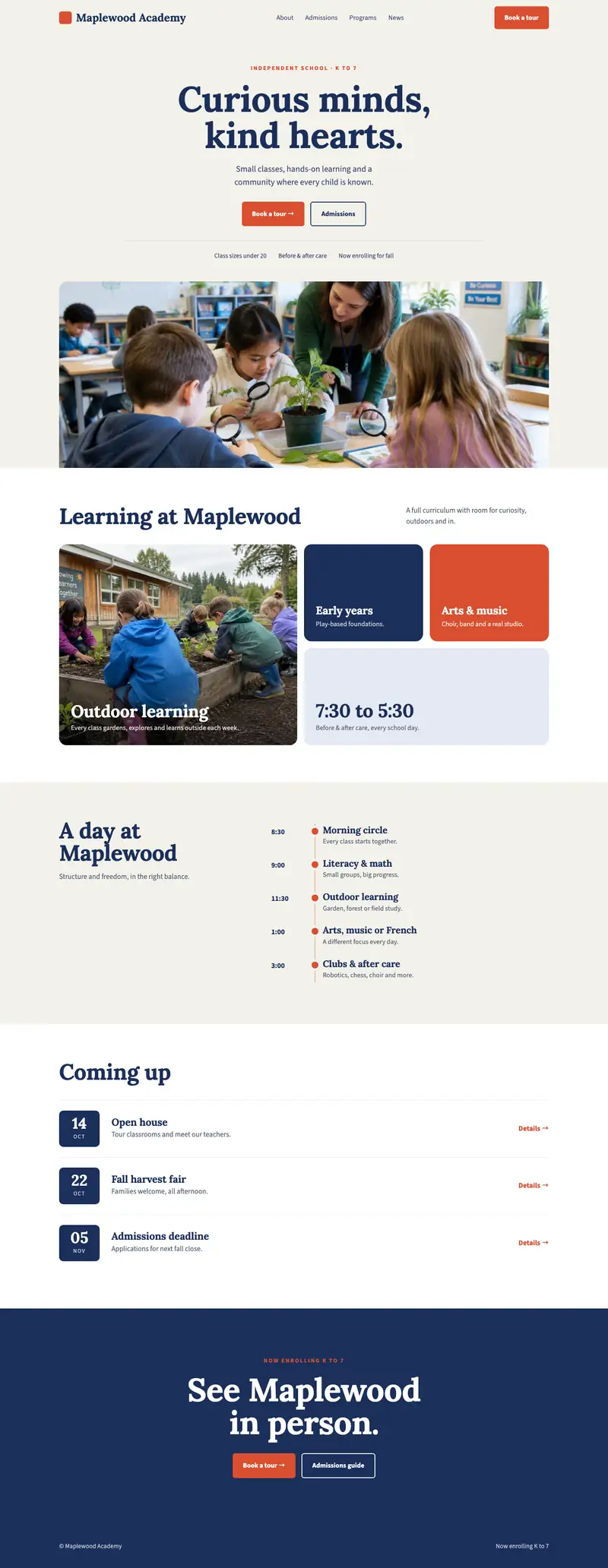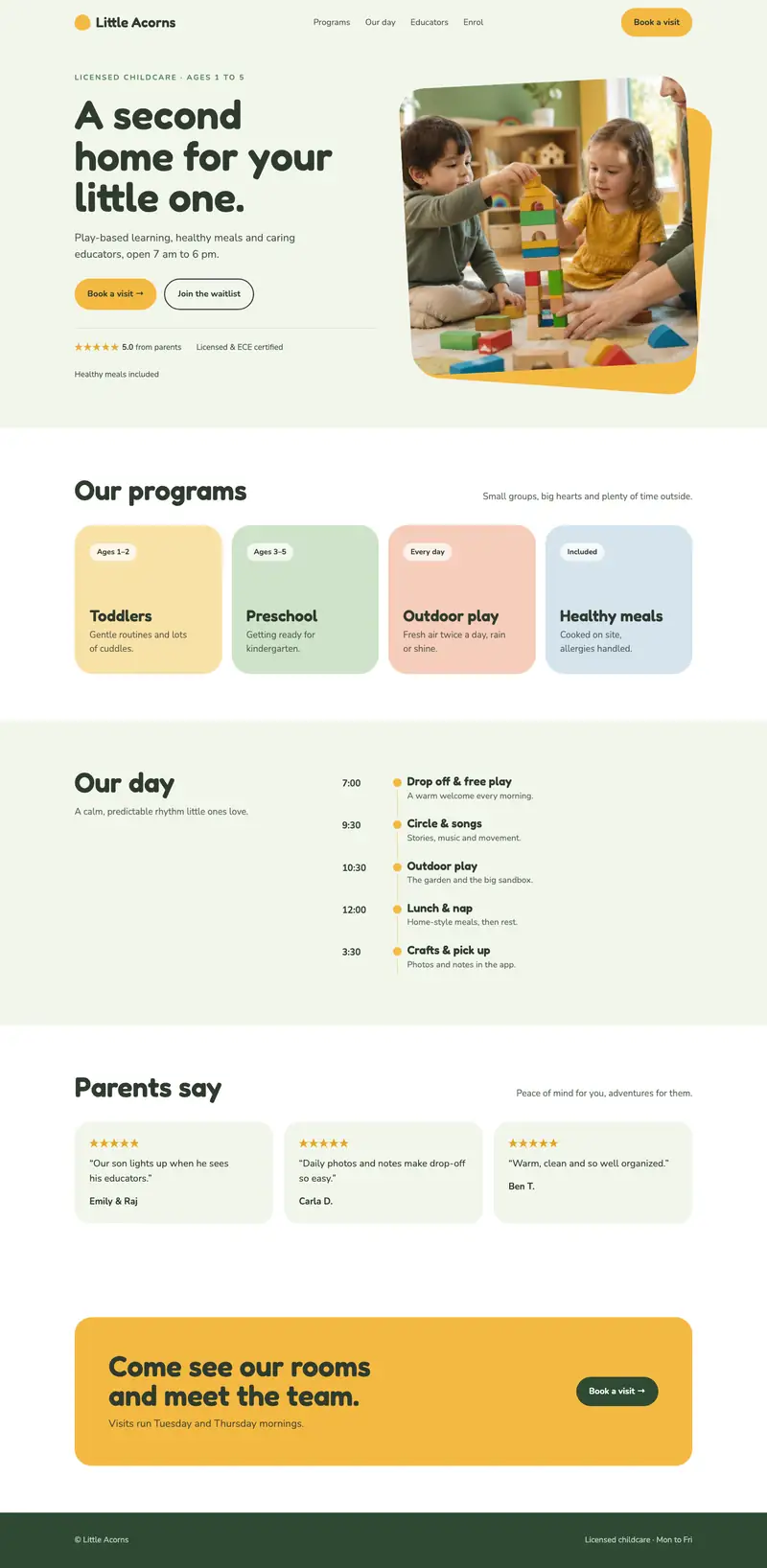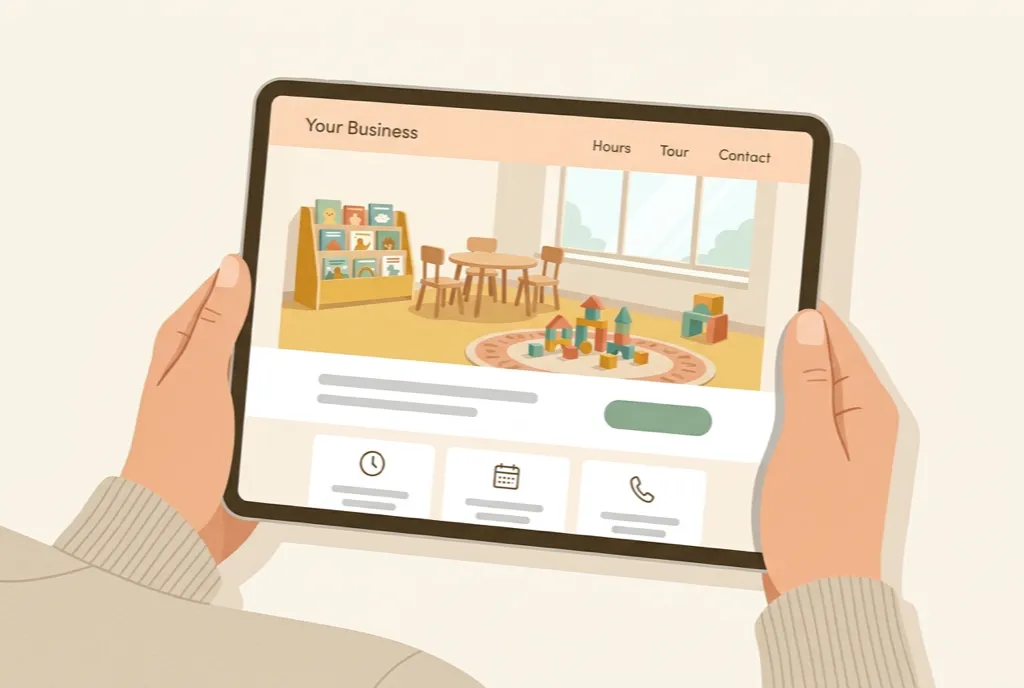
Parents use a daycare website to answer a few practical questions before they ever call you: are you open the hours they work, do you take children their child’s age, and is there space? If those answers are hard to find, it’s easy for them to move on to the next centre on their list.
Most of this applies to preschools too. The programs differ, but parents ask the same questions.
What to put at the top of your daycare website
B.C.’s child care map lets families search by hours of operation, program type and services such as meals, additional languages and special needs support. Parents can already sort centres by those details, so your homepage should answer them without any clicking around:
- Your opening and closing times, and the days you’re closed
- The ages you take
- Full-time, part-time, or both
- Whether you provide meals
- Your neighbourhood or address
The province lists four types of child care: licensed, registered licence-not-required, licence-not-required and in-child’s-own-home (gov.bc.ca). Say which one you are, in the words the province uses.
If you’re part of the province’s Child Care Fee Reduction Initiative, put that near the top as well. Families don’t apply for the fee reduction themselves; the savings come through a provider that’s enrolled (gov.bc.ca), so parents want to know whether you’re one of them.
Your hours on Google should match the website. Google suggests confirming your hours for official holidays even when they’re the same as usual, and setting special hours for short closures (Google Business Profile Help).
Spaces and how your waitlist works
The province tells families that waitlists are kept and managed by each provider, and that they should ask the centre how its waitlist works and how openings get filled (gov.bc.ca). That’s a question you’ll answer on the phone over and over unless it’s on your site.
Put these on the page:
- Whether you have spaces now, and for which ages
- How to join the waitlist
- How you fill openings, for example whether siblings of current families get priority
- When parents can expect to hear back
If you charge a deposit, explain it. The province’s fee reduction page says providers receiving base funding can’t charge waitlist fees, and that deposits to hold a space are up to the provider (gov.bc.ca).
Keep the waitlist form short. A name, a phone number or email, the child’s age and the start date they want is enough to begin.
Booking a tour
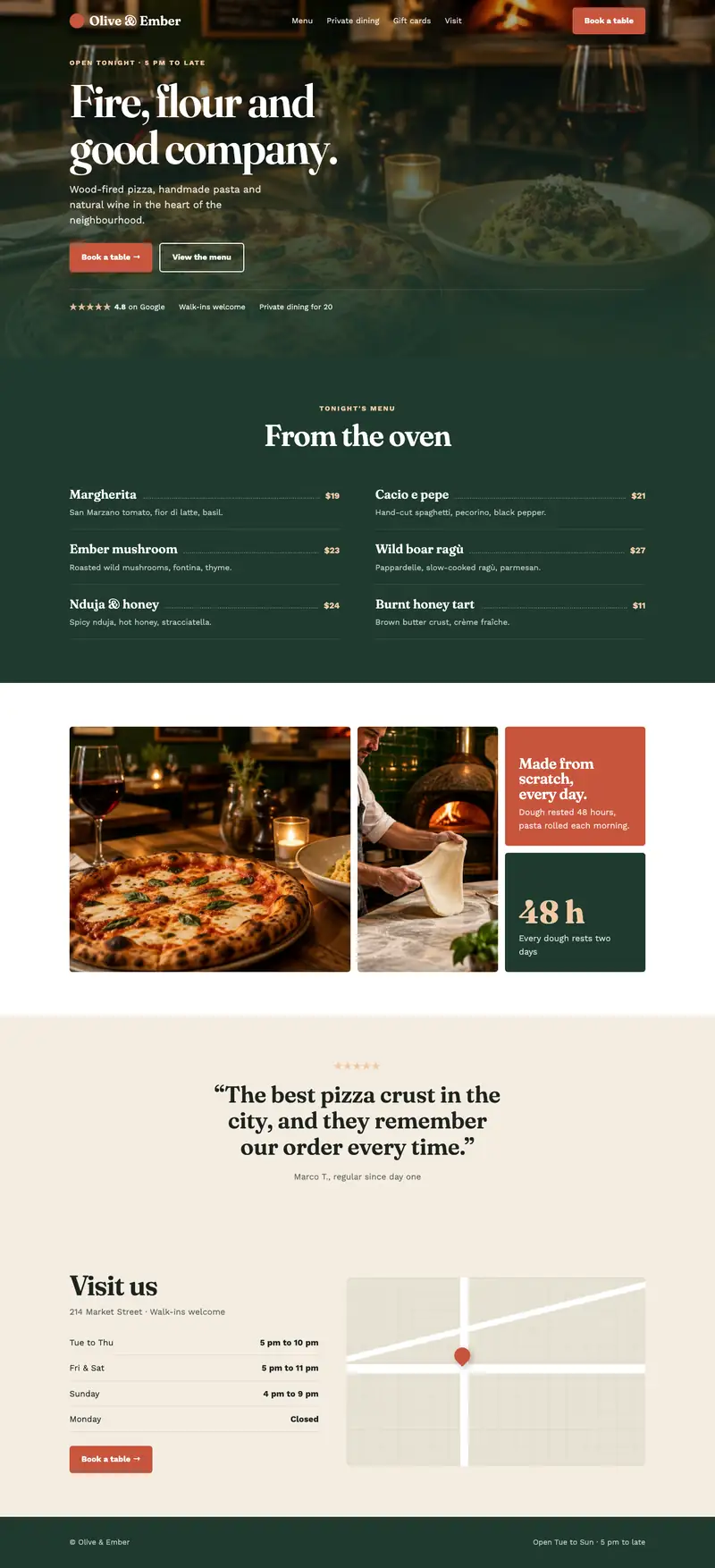
Many parents want to visit before they decide. Make booking a tour the main button on the site, at the top of the homepage and again at the bottom of each page.
Next to it, say when you run tours, how long they take and where to park or come in. If you’d rather parents call, say the best time to reach you, since staff who are with the children can’t always get to the phone.
Show the space and the people
Parents want to see the rooms their child will spend the day in. Take photos on your phone in good daylight, when the room is tidy:
- The main play area and the outdoor space
- Where children nap and eat
- The entrance parents use at drop-off
Then introduce your team. Names, roles, how long each person has been with you, and any training they hold, such as an Early Childhood Educator certificate. A short outline of a typical day helps too: drop-off, snack, outside time, lunch, nap, pick-up.
Photos of children and parents’ consent
B.C.’s privacy commissioner says an image that can identify a person is personal information, and that for a minor, consent has to come from a legal representative such as a parent or guardian (OIPC guide to PIPA, PDF). The same guide says people can withdraw their consent with reasonable notice.
Before a child’s photo goes up:
- Get a parent’s written permission for the website and for social media
- Keep a record of who said yes
- Take a photo down when a parent asks
You can also use photos with no faces in them, like hands at a craft table or children from behind. They still show what a day looks like.
Make it easy to reach you
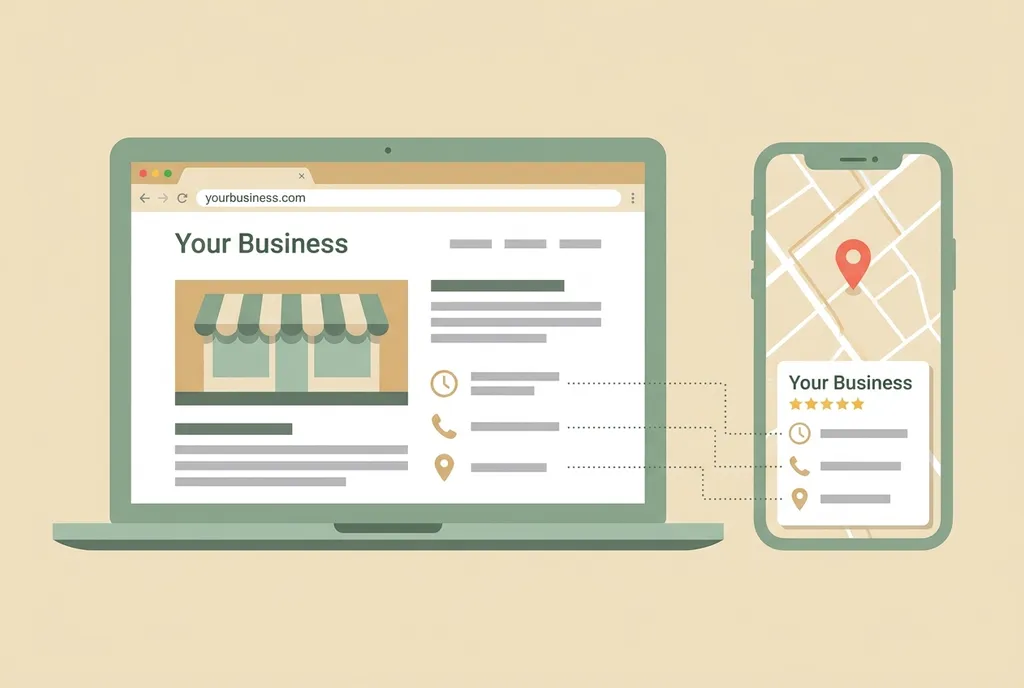
Put your phone number at the top of the site, so a parent on a phone can tap it to call. Add your address with a map, an email address or a short form, and the hours someone answers. If you’re gathering everything for a new site, the photos and staff details above belong on that list.
Daycares and preschools are among the organizations we build for, and every project starts with research into your market and the centres near you. You can see how we design and build a website if you’d like help.
Before you change anything, open your site on your phone and time how long it takes to find your hours, the ages you take, whether you have a space and how to book a tour. Anything that takes more than a couple of taps should move up to the homepage.